Category: Arc
-

Using the Arc Security tool for TM1
How to use
-

Getting started with Arc Desktop for Windows
On Windows, Arc is available as a desktop application or as a server. To install Arc as a server, the instructions can be found here. Arc Desktop and Arc Server have the same features except that it is easier to use multiple windows with Arc Desktop.
-
Hiding instances that have been returned from the admin host
By default Arc will detect and show all TM1 instances available on the server where Arc is installed and on any adminhosts defined in the settings.yml file.
-

Changing the naming of functions and snippets in rules and processes
This article explains how to change the naming of function and snippets in rules and processes. By default all functions and snippets follow a PascalCase.
-
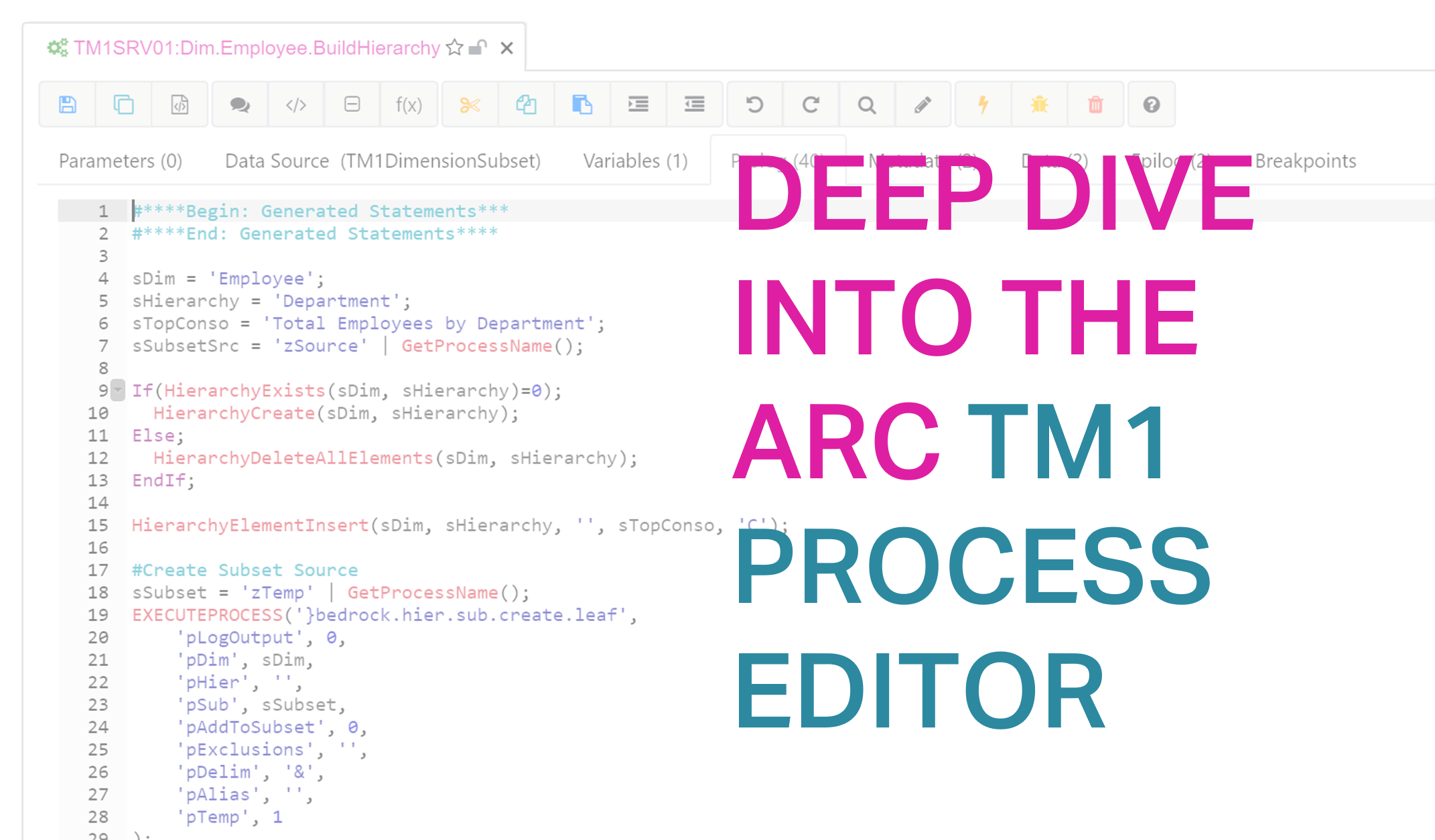
Deep dive into the Arc TM1 Process Editor
Arc helps TM1 developers build higher quality IBM TM1 and Planning Analytics applications faster. It brings state of the art development interface to TM1 developers including modern IDE features.
-
Arc the ultimate developer tool for IBM Cloud customers
Similar features as Architect or Perspectives and more…
-

Adding a name in the menu bar
Starting with Arc v1.10, a name can be displayed in the menu bar to let the developers know on which server they are working on.
-
Arc v1.9 is now available
Arc for TM1, the ultimate developer tool for IBM Planning Analytics has just got even better. Arc v1.9 includes many new features requested by developers from all around the world.
-

Setting up SSO with CAM and Arc
This document will guide you to configure Single Sign On with CAM Security. Before proceeding, ensure that the user is able to go to http://<host>:<port>/ibmcognos using his/her PC, without being prompt for a username and password. Note also this only works with Internet Explorer and Chrome due to security configuration.
-

Building Time Dimensions
Arc v1.9 includes a Time Management plugin to build a Day, Week, ISO Week Month and Year dimensions in just a few clicks.